
Getting Started with Logging Foot
We’ll walk you through how to get started after installing Logging Foot.
Installation Folder
First, please verify the installation folder.
Viewer Application (Desktop Shortcut)
C:\Program Files\Logging Foot\ftviewer\
Documents
C:\Program Files\Logging Foot\doc\en\
SDK
C:\Program Files\Logging Foot\ftsdk\
SDK Sample Program
C:\Program Files\Logging Foot\sample\
How to Use the SDK Sample Program
Next, let’s run the sample programs to verify how Logging Foot works.
This section explains how to use the following two samples:
- Viewer‑First Sample: Run the Log App After Launching the Viewer
- Sample: Log App Starts First and Automatically Launches the Viewer
For further information, see the documents listed below in the Documents folder.
LoggingFoot_API-EN.pdf
1. Viewer‑First Sample: Run the Log App After Launching the Viewer
We will use the simplest sample program, Sample_StartProcess, as an example.
(1) Launch the Viewer Application
Start the viewer using the desktop shortcut (Logging Foot) or by running:
C:\Program Files\Logging Foot\ftviewer\ft_viewer.exe
(2) Launch the Sample Application Sample_StartProcess
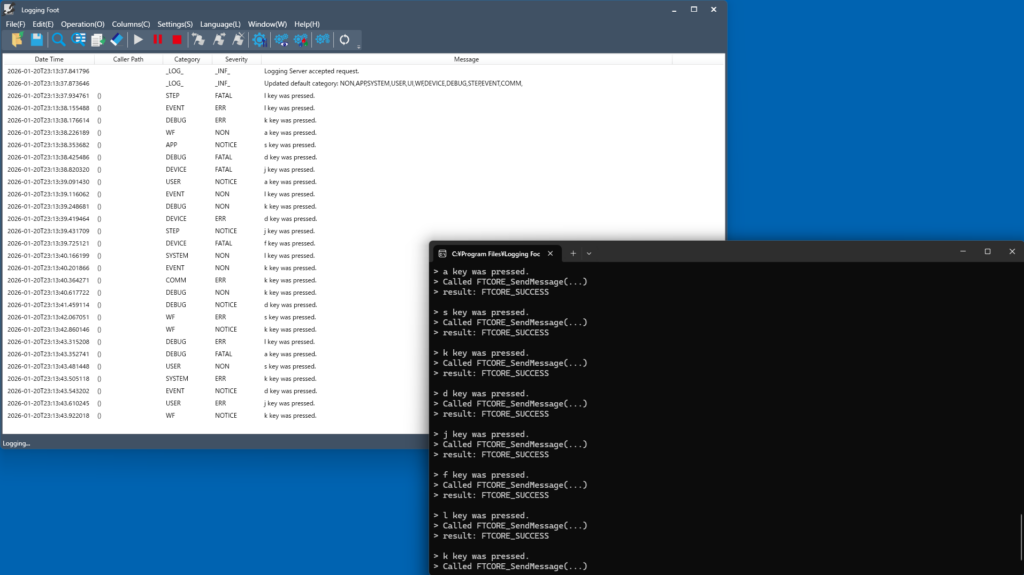
Start the pre‑built sample application (log‑output application) located at:
C:\Program Files\Logging Foot\sample\Cpp\Sample_StartProcess\bin\Release\Sample_StartupServer.exe
When you press any key in the console window, the input key will be logged and displayed in the viewer application.
2. Sample: Log App Starts First and Automatically Launches the Viewer
If the viewer application is already running, please close it.
(1) Launch the Sample Application Sample_StartupServe
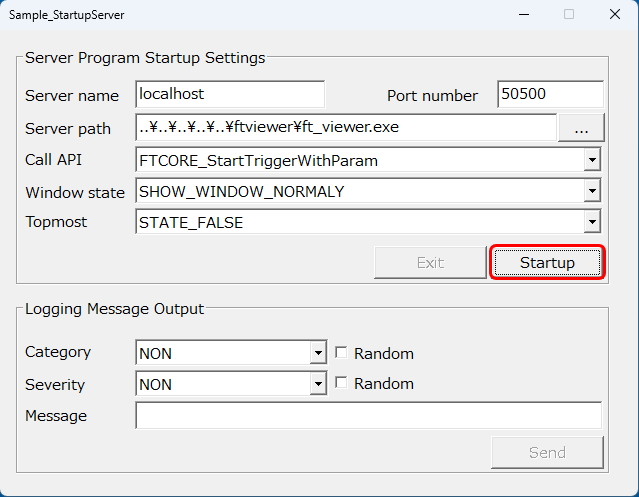
Start the pre‑built sample application (log‑output application) located at:
C:\Program Files\Logging Foot\sample\Cpp\Sample_StartProcess\bin\Release\Sample_StartupServer.exe
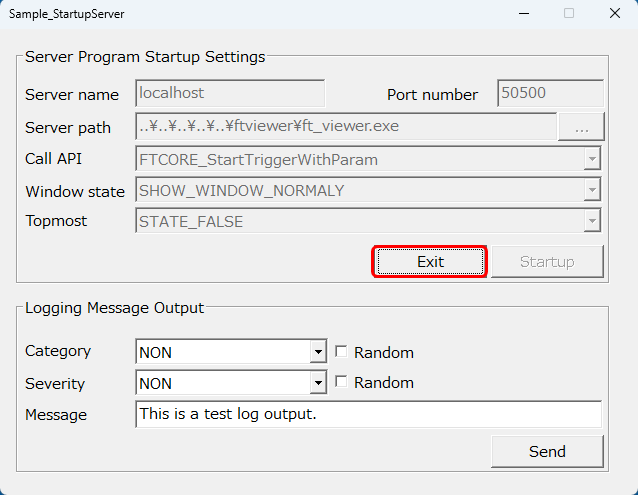
When you click the [Startup] button, the viewer application will launch automatically.
(2) Output a Log
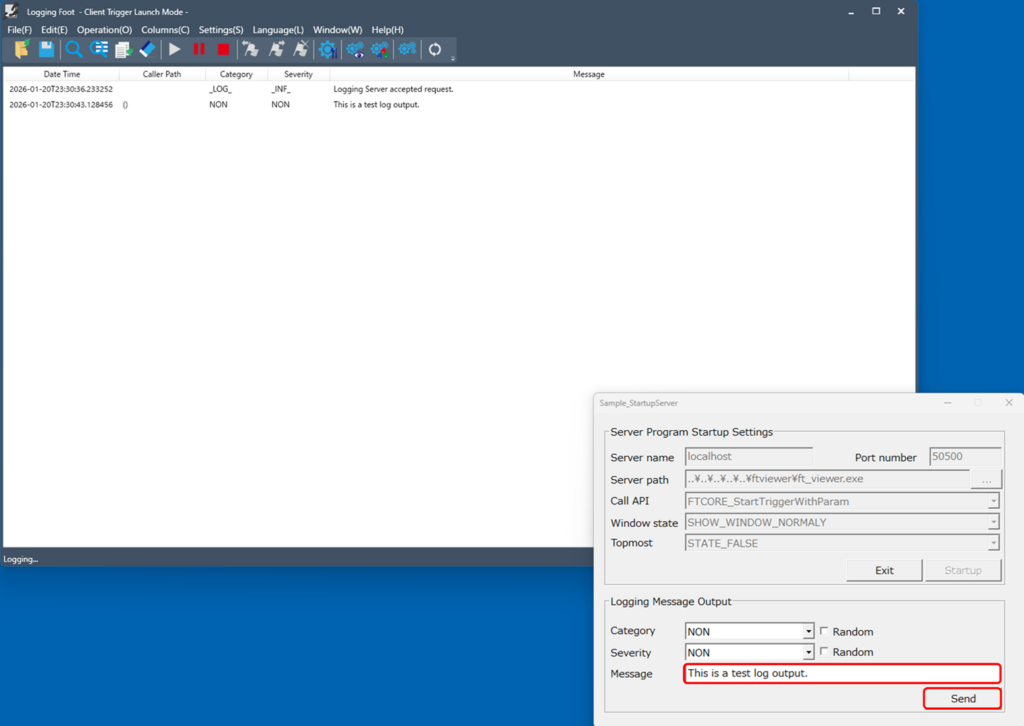
Enter any text in the [Message] input box and click the [Send] button.
The entered text will be logged and displayed in the viewer application.
(3) Exit the Viewer Application
To close the viewer application, click the [Exit] button.
SDK Implementation Examples
The Logging Foot SDK supports the following programming languages, and sample programs are provided for each:
C++, C#, Python, JavaScript, VB

Here, we provide the shortest implementation examples in C# and Python.
For detailed sample code and the full source, please refer to the SDK sample programs located at:
C:\Program Files\Logging Foot\sample\C#\
C:\Program Files\Logging Foot\sample\Python\
C#
First, implement the steps described in items 1 through 3 below.
For details on the development environment and the SDK Wrapper, refer to sections 2.2.3 Development Environment and 2.2.4 How to Use FTSDK in the following document:
C:\Program Files\Logging Foot\doc\en\LoggingFoot_API-EN.pdf
1. Start Logging
// The Logging Foot SDK C# Wrapper.
using FTSDK_Wrapper;
// Destination Viewer Application information.
var server = "localhost";
var port = 50500;
// Call the Logging Foot SDK API to start logging.
var result = FtsdkCSWrapper.FTCORE_StartProcess(server, port);
2. Send Logs
// Get caller method.
var stack = new System.Diagnostics.StackFrame(0);
var path = stack.GetMethod().ToString();
// Set category, severity.
var category = "SYSTEM";
var severity = "WARNING";
// Set log message.
var message = "This is sample logging test in C#.";
// Call the Logging Foot SDK API to send log message.
result = FtsdkCSWrapper.FTCORE_SendMessage(path, category, severity, message);
3. Terminate Logging
// Call the Logging Foot SDK API to exit logging.
result = FtsdkCSWrapper.FTCORE_ExitProcess();
4. Run the Program
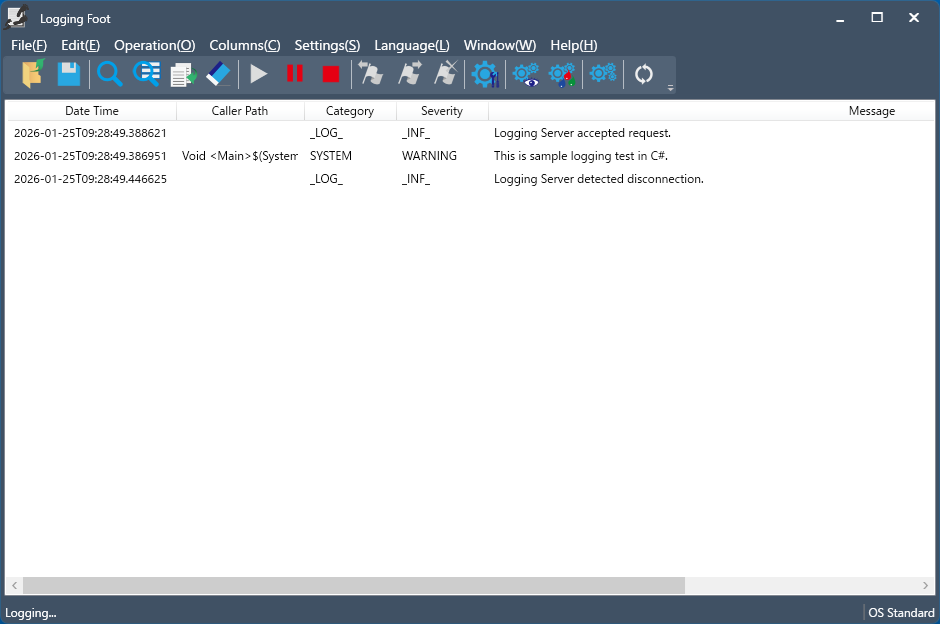
After implementing the code from steps 1 to 3, start by launching the viewer application by clicking the “Logging Foot” icon on your desktop.
Next, run the program code you implemented.
In the viewer application, you should see the full sequence of logs—from the start of logging, to receiving the message “This is sample logging test in C#.” and finally the termination log.
Python
First, implement the steps described in items 1 through 3 below.
For details on the development environment and the SDK Wrapper, refer to sections 2.5.3 Development Environment and 2.5.4 How to Use FTSDK in the following document:
C:\Program Files\Logging Foot\doc\en\LoggingFoot_API-EN.pdf
1. Start Logging
import win32api #-need to install pywin32
import inspect
#-The Logging Foot SDK Python Wrapper
import FtsdkPYWrapper as ftsdk
#-Destination Viewer application information.
server = "localhost"
port = 50500
#-Call the Logging Foot SDK API to start logging.
result = ftsdk.FtsdkPYWrapper.FTCORE_StartProcess(server, port)
2. Send Logs
#-Get caller method(Output file name in this sample.)
stack = inspect.stack()
path = stack[0].filename
#-Set category, severity.
category = "SYSTEM"
severity = "WARNING"
#-Set log message.
message = "This is sample logging test in Python."
#-Call the Logging Foot SDK API to send log message.
result = ftsdk.FtsdkPYWrapper.FTCORE_SendMessage(path, category, severity, message)
3. Terminate Logging
#-Call the Logging Foot SDK API to exit logging.
result = ftsdk.FtsdkPYWrapper.FTCORE_ExitProcess()
4. Run the Program
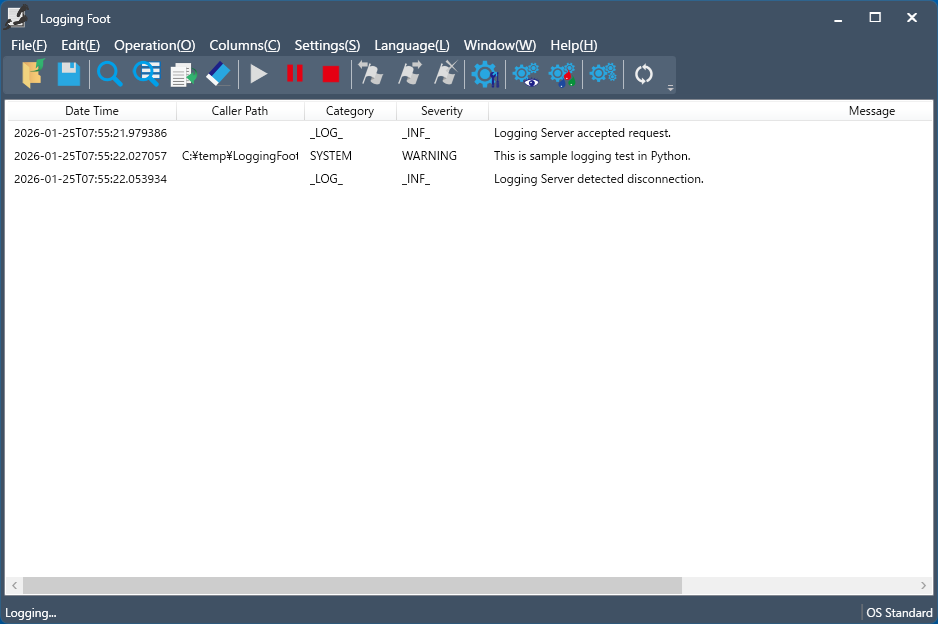
After implementing the code from steps 1 to 3, start by launching the viewer application by clicking the “Logging Foot” icon on your desktop.
Next, run the program code you implemented.
In the viewer application, you should see the full sequence of logs—from the start of logging, to receiving the message “This is sample logging test in Python.” and finally the termination log.
Logging Foot Installation Guide
For more detailed information on installing Logging Foot, please refer to the following document in the Documents folder.
LoggingFoot_Installation-EN.pdf
SmartScreen Warning Shown During MSI Installer Execution
Logging Foot is code‑signed with a certificate issued by Certum Code Signing 2021 CA. However, when a new version is released or when the number of downloads is still low, Windows may display the message “Windows protected your PC” during installation.
This warning does not indicate that the application is unsafe. It is triggered by the Windows SmartScreen feature, which automatically evaluates applications based on their download count and execution history (reputation).
There is no issue with the application itself.
If a warning appears, select “More info,” confirm that the publisher is Quantyworks Software, and then choose “Run anyway” to launch the application.
As more users download and run the application, the warning will gradually disappear.
A Microsoft Store version of Logging Foot is also available.
If you install the app from this source, no security warnings will appear.
Please consider using this option if your environment has strict security policies or other restrictions.
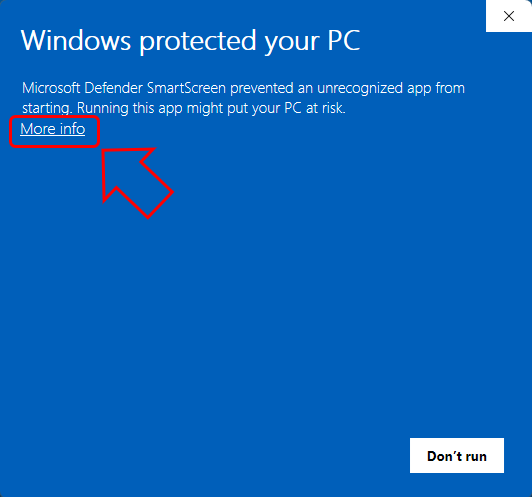
Select "More info"
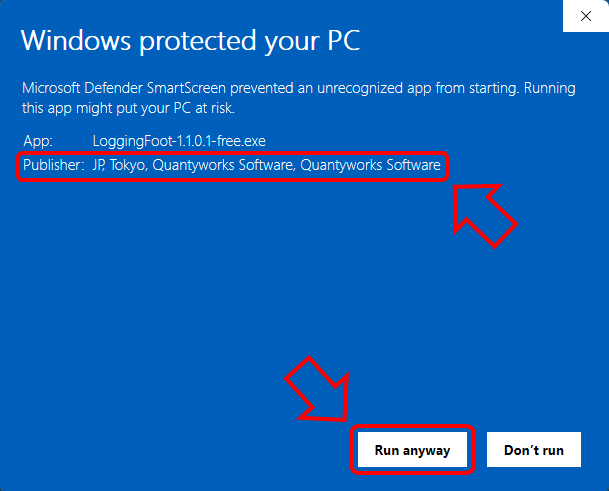
After confirming that the publisher is displayed as
“Quantyworks Software,” click “Run anyway” to proceed.